[ Ad Spend Data ]
Connect Apple Search Ads to Transolve
Exchange a public key to link your Apple Search Ads account. Once connected, campaign spend and keyword data flows automatically into your profitability dashboard.
Prerequisites
- An Apple Search Ads account (Advanced tier)
- At least two users on the account
- Admin access to invite/manage users
- A Transolve account
Find your Organization ID
Log in to searchads.apple.com and switch to the Advanced campaign management view. Click your account name or username in the top-right corner of the page. Your Account ID (also called Organization ID) is displayed in the dropdown. Copy it — you'll need it in the next step.
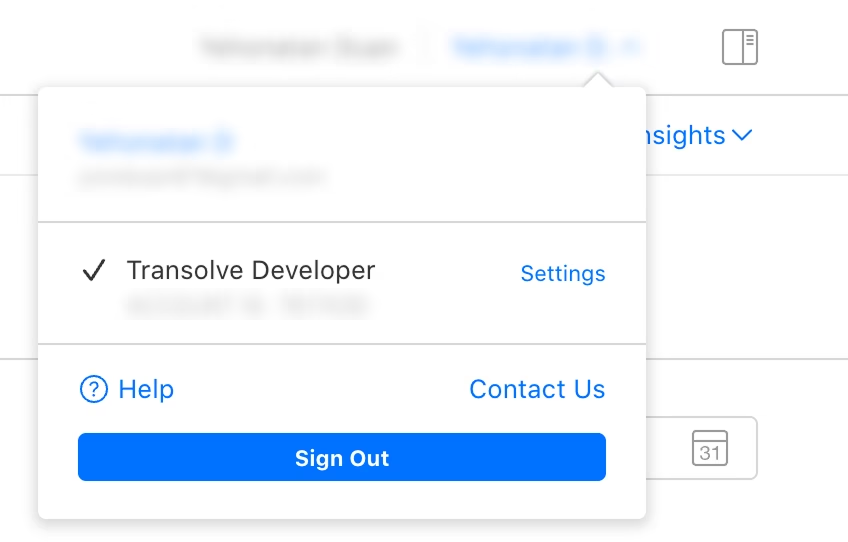
Your Account ID is visible in the top-right account menu
Start the integration and generate a key pair
In Transolve, navigate to Integrations → App Store Search Ads. Paste your Organization ID into the field provided, then click Generate Key Pair. Transolve will create a public/private key pair — the public key is displayed on screen. Keep this page open; you'll return to it after the next steps.
Do not close or refresh this page. The public key is shown here and you'll need to copy it shortly.
Invite an API Account Manager
Apple requires at least two users on your account to configure API access — the role that can upload public keys is API Account Manager, and it cannot be assigned to the account owner. In Apple Search Ads, click your account name in the top-left corner → Settings → User Management tab. From here, either invite a team member or select an existing user and change their role to API Account Manager.
This is a known friction point in Apple's API setup. The API Account Manager role must belong to a different user than the account owner. If you only have one user on the account, you'll need to invite another person before continuing.
Upload the public key
Have the user with the API Account Manager role log in to searchads.apple.com. They should navigate to Settings → API tab (visible only to this role). In the Public Key field, paste the public key you generated in Transolve. After uploading, Apple will display three credentials: Client ID, Key ID, and Team ID.
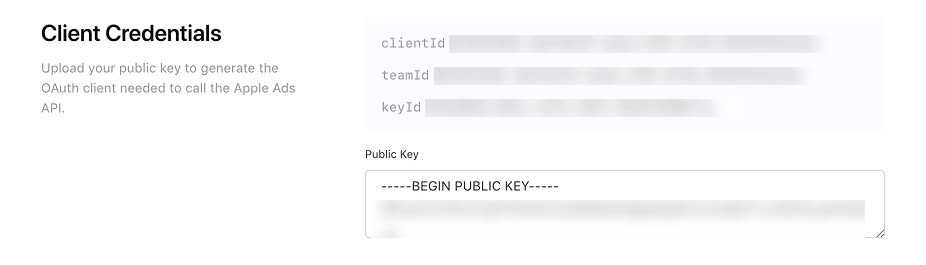
After uploading the public key, Apple shows your Client ID, Key ID, and Team ID
Paste the three credentials back
Return to the Transolve integration page (the one you left open in Step 2). Copy the Client ID, Key ID, and Team ID from Apple Search Ads and paste each into the corresponding fields in Transolve.
Complete setup
Click Complete Setup. Transolve will verify the credentials using the key pair and establish a secure connection to your Apple Search Ads account. Your campaigns, ad groups, and keyword-level spend data will start appearing in the dashboard. Initial sync usually takes a few minutes.
Once connected, Transolve will refresh your Apple Search Ads data, keeping your revenue vs. spend view up to date.
Integration complete
Apple Search Ads is now connected. Head to the dashboard to see campaign spend paired with your RevenueCat revenue data.